Shop identity, contact information, hours, and closures
Shop identity, contact details, and locale live at Configurations > General > Business info. Business hours and the default appointment duration live at General > Hours and calendar. Holidays and one-off closures are not a setting at all; they are shop closure events you create on the Calendar page as they come up. If you are setting up a brand-new shop, follow New-shop onboarding first; this page is the reference for changing these settings later and for what each change actually does.
Identity, contact, and address fields
The General tab has four sections: Identity, Contact, Address, and Locale. Every field saves automatically when you click or tab out of it, and each section card shows a saved indicator when the write lands. If you start typing and then leave the page, a dialog asks whether to save or abandon the change.
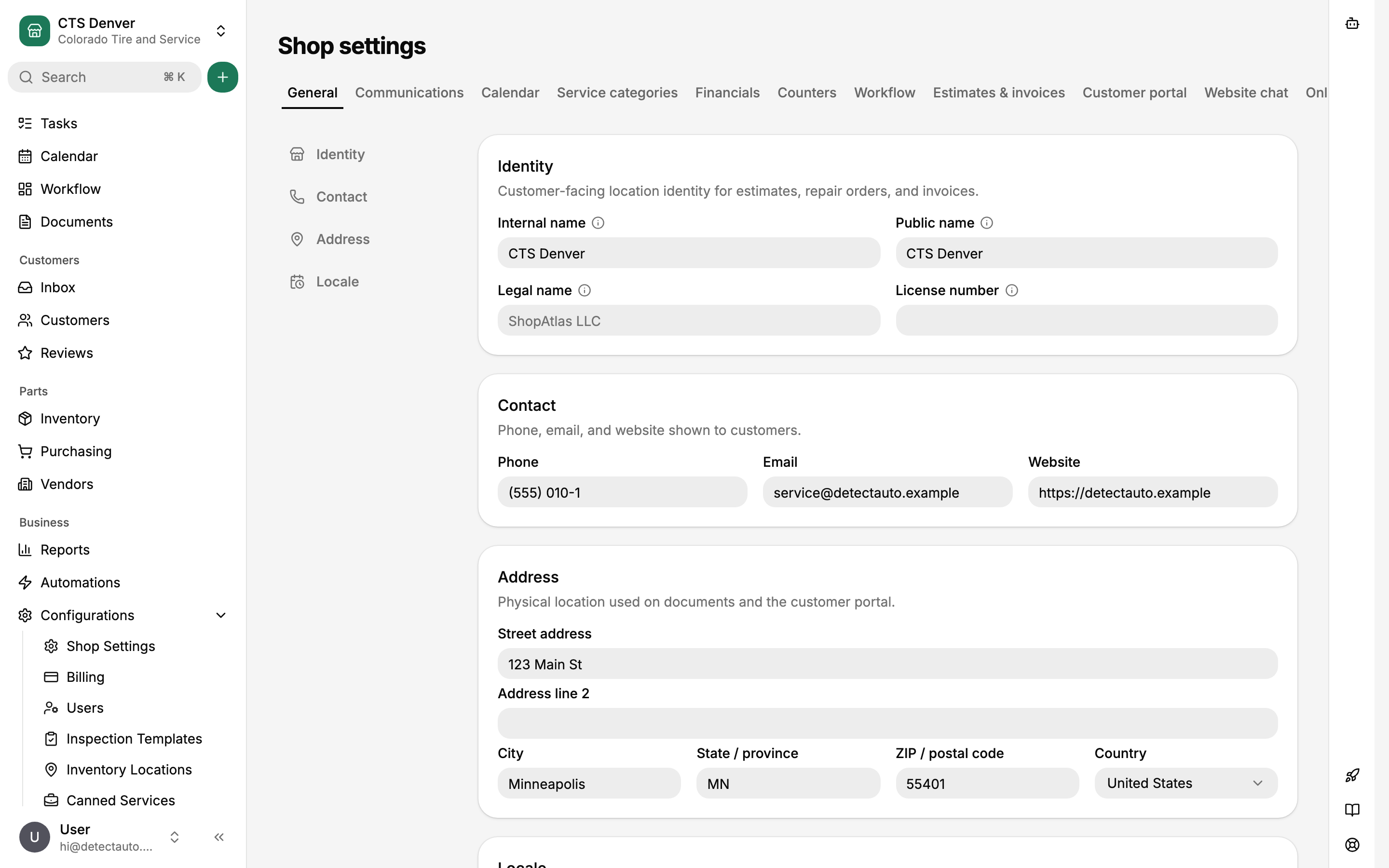
Identity holds the two shop names plus two optional fields:
- Internal name is the staff label. It appears in the shop switcher, the organization's Locations list, and other staff views. Customers never see it.
- Public name is what customers see on estimates, repair orders, invoices, and the Customer Portal. Both names are required; the Public name cannot be cleared and never falls back to the Internal name.
- Legal name is your registered legal entity name, for tax and legal paperwork.
- License number is your repair-facility license number, printed on customer documents where your state requires it.
Contact (phone, email, website) and Address (street address, city, state or province, ZIP or postal code, country) are the details shown to customers on documents and the portal. Country is a two-letter choice, United States or Canada. Changing the country to Canada also switches the distance unit to kilometers unless you set the unit yourself.
What happens when you change identity fields later
Everything customer-facing on the General tab (Public name, legal name, phone, email, website, address, license number) is versioned. Each edit creates a new identity version and the shop points at it; old versions are never rewritten. The practical effect:
- Open estimates and repair orders always show the current values. Fix a typo in your phone number and every open document reflects it immediately.
- Finalized invoices keep the identity that was current at finalization. Renaming the shop does not rewrite last year's invoices, which is what you want for records you have already handed to customers.
The Internal name is not part of that versioning and appears on no customer document. Renaming it only changes staff surfaces: the shop switcher and the organization's Locations list update as soon as the save lands.
Timezone and distance unit
The Locale section sets the shop's timezone and distance unit. The timezone is the clock for everything shop-local: the Calendar renders in it, business hours are interpreted in it, online-booking slots are computed in it, and scheduled automations fire on it.
If you change the timezone:
- Business hours keep their wall-clock times. An 8:00 to 17:00 Tuesday stays 8:00 to 17:00 in the new timezone.
- Existing appointments and closures keep their absolute moment in time, so their displayed clock time shifts by the offset between the old and new zones. After a real move, review upcoming appointments on the Calendar.
Until a timezone is set, the Calendar falls back to your browser's timezone, so set it once and leave it alone unless the shop physically moves.
The distance unit (miles or kilometers) only changes how distances are displayed. Stored values are unaffected, so you can switch it back and forth without corrupting anything.
Fields required before customer-facing work
A shop cannot send estimates, finalize invoices, or record payments until its basic business information is complete: Public name, phone, street address, city, state, ZIP, and timezone. If any are missing, the General tab shows a red "Business information required before launch" alert naming them, and the blocked actions fail with a message saying the shop must be launch-ready. A confirmed tax config and an enabled payment method are also required; those live under Configurations > Financial and are covered in Labor rates, part markup, fees, discounts, and taxes and Payment methods and customer-document settings.
Business hours
The Hours and calendar tab's Business hours card holds the normal weekly pattern: for each day, zero or more open intervals. Turn on a day's switch, set its opening and closing times inline, and click Save. Use the small + button to add a second interval for a midday close (8:00 to 12:00, then 13:00 to 17:00), or use the copy button to apply one day's schedule to other days. Turning a day off marks it Closed. An interval must open before it closes, so hours cannot cross midnight; a shop that works past midnight ends the interval at 23:59.
Unlike the General tab, business hours do not autosave. The Save button stays disabled until you change something, and leaving the page with unsaved edits prompts you to save or abandon them.
Business hours drive how the Calendar reads:
- Time slots outside your hours are shaded on the day and week views.
- The Calendar's Only business hours view option trims the visible day to your earliest open and latest close. It is unavailable until the shop has at least one interval, whether its own or the organization default it inherits.
Business hours do not block anything. Staff can create an appointment outside them, and online-booking slots come from the Booking Widget's own bookable hours on the Online booking tab, not from business hours. That separation is deliberate: a shop can take web bookings for a narrower window than it is open. If you change your hours, check the Online booking tab's hours too; nothing syncs them for you.
The Default appointment duration setting on the same tab is the block length new appointments get before anyone adjusts them. Changing it affects only appointments created afterward.
Change hours for one shop or the whole organization
In a multi-shop organization, business hours and appointment settings can follow the organization default or be overridden per shop, like other inheritable settings groups. Saving hours on a shop's Calendar tab switches that shop to its own copy; Reset to organization settings discards the copy and follows the organization again. If the organization has locked the group, the editors are disabled and the change has to be made on the organization's settings pages. The full model is in Organization defaults and shop overrides.
Record a holiday or closure
A shop closure is a calendar event, not an hours setting, because it has dates: Thanksgiving, a training day, a week of renovations. Create one when the closure is scheduled, not by editing your weekly hours.
- Open Calendar in the sidebar and choose Shop closure from the new-event menu. The plus button next to Search offers the same shortcut from anywhere in the app.
- Enter a title ("Closed for Thanksgiving"), turn on All day or set start and end times, and add internal notes if staff need context.
- Save. The closure appears on the Calendar as an orange block for everyone at the shop.
A closure can span part of a day, so a half-day close before a holiday is one closure event from noon to close rather than an edit to that week's hours.
Closures do not lock the staff Calendar: staff can still schedule an appointment during one. They do remove overlapping slots from online booking, and the server rejects a stale booking attempt if a closure was added after a visitor loaded availability. Before a holiday, check the Calendar for anything already booked on the closed day and reschedule it yourself.
To change or remove a closure, click it on the Calendar and edit or delete it from its details. Deleting a closure only removes the calendar block; it touches nothing else.
Who can change these settings
Editing the General tab requires update permission on shops. Viewing the Hours and calendar tab requires read permission on shop settings, and saving hours or appointment settings requires update on shop settings. Closures use the calendar events permissions: create to add one, update to edit, delete to remove. If a tab shows an access error or a Save button does nothing, ask whoever manages your users to check these; see Assign Shop Roles, shop access, and User Permissions.