Navigation, search, and basic concepts
Use the left sidebar for day-to-day shop work, Search to find a customer or vehicle, and the shop switcher at the top left to choose which Shop you are working in.
Move around BayEngine
The left sidebar groups the pages used for shop work:
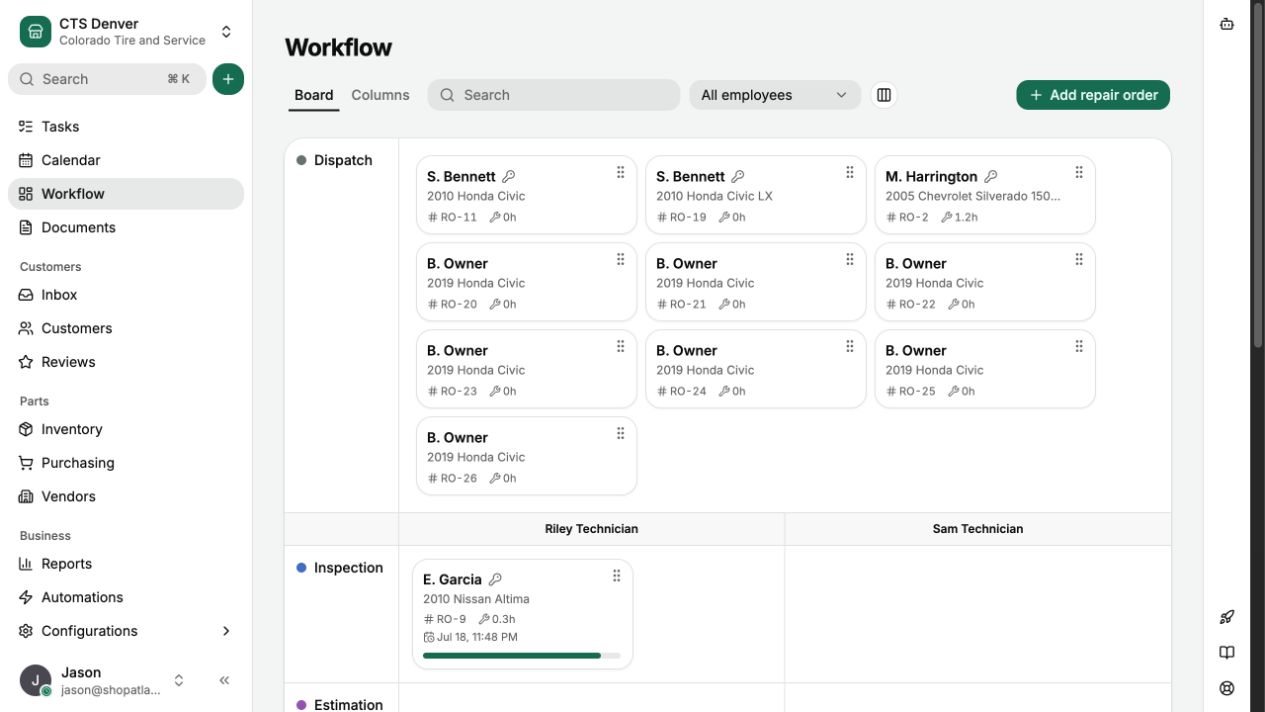
- Tasks, Calendar, Workflow, and Documents cover scheduled and active work.
- Inbox and Customers hold customer communication and records.
- Inventory, Orders, and Vendors cover parts operations.
- Automations and Configurations hold rules and setup pages.
The visible Reports and Billing entries are placeholders and do not open a page yet. The Reviews placeholder is temporarily hidden.
The highlighted item is the page you have open. On a desktop, use the double chevron at the bottom of the sidebar to collapse it to icons or expand it to show labels. On a smaller screen, use the menu button at the upper left to open the sidebar.
The right rail's AI assistant button opens the assistant. An Estimate or Repair Order page may add tools that are useful for that vehicle visit. The Onboarding, Documentation, and Support chat buttons do not open panels yet.
Switch to another Shop
The shop switcher shows the active Shop's Internal name. This is the staff label for a physical operating Shop, not the Public name printed on customer documents.
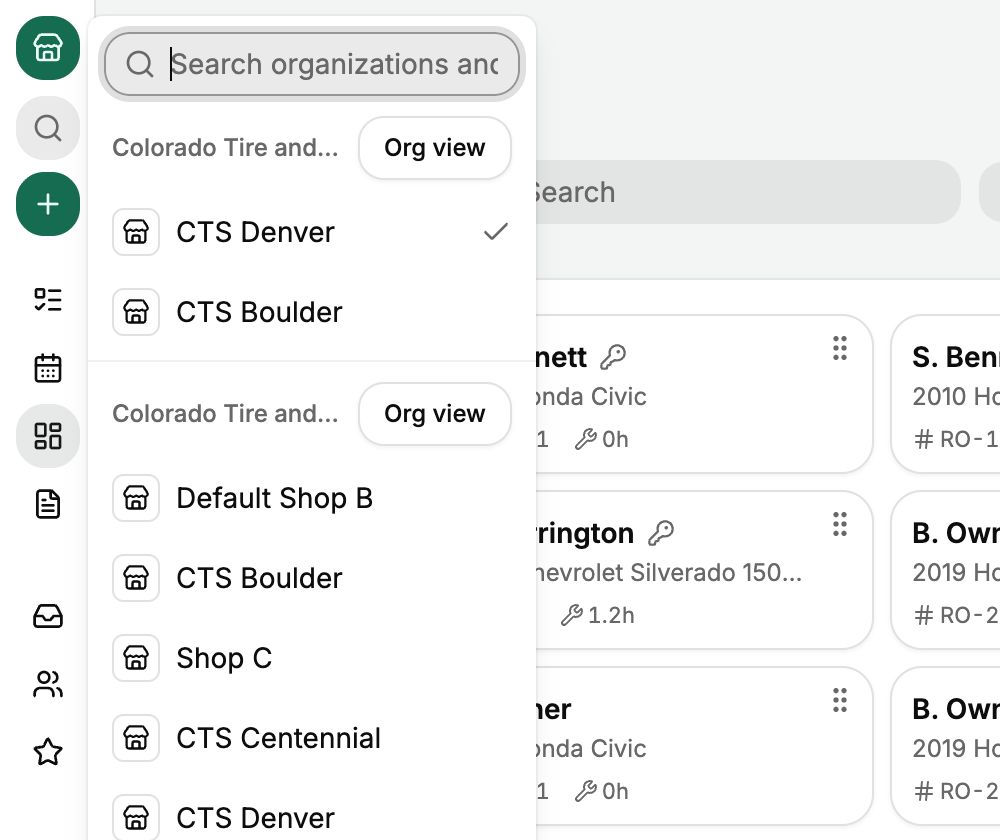
- Select the active Shop at the top left.
- If the list is long, enter an Organization or Shop name in Search organizations and shops.
- Select the Shop's Internal name.
- If BayEngine finds unsaved work, finish the save-or-discard prompt before the Shop changes.
The selected Shop becomes the working context for shop pages, create actions, and Shop-scoped search history.
If you have access, Org view opens shared Organization reports and settings. An Organization is the business group that owns one or more Shops. Search and Create belong to Shop view and do not appear in Org view. Select a Shop from the switcher to return to shop work.
Search for a customer or Vehicle
Search starts after two characters and returns Customers, Vehicles, Estimates, and Repair Orders.
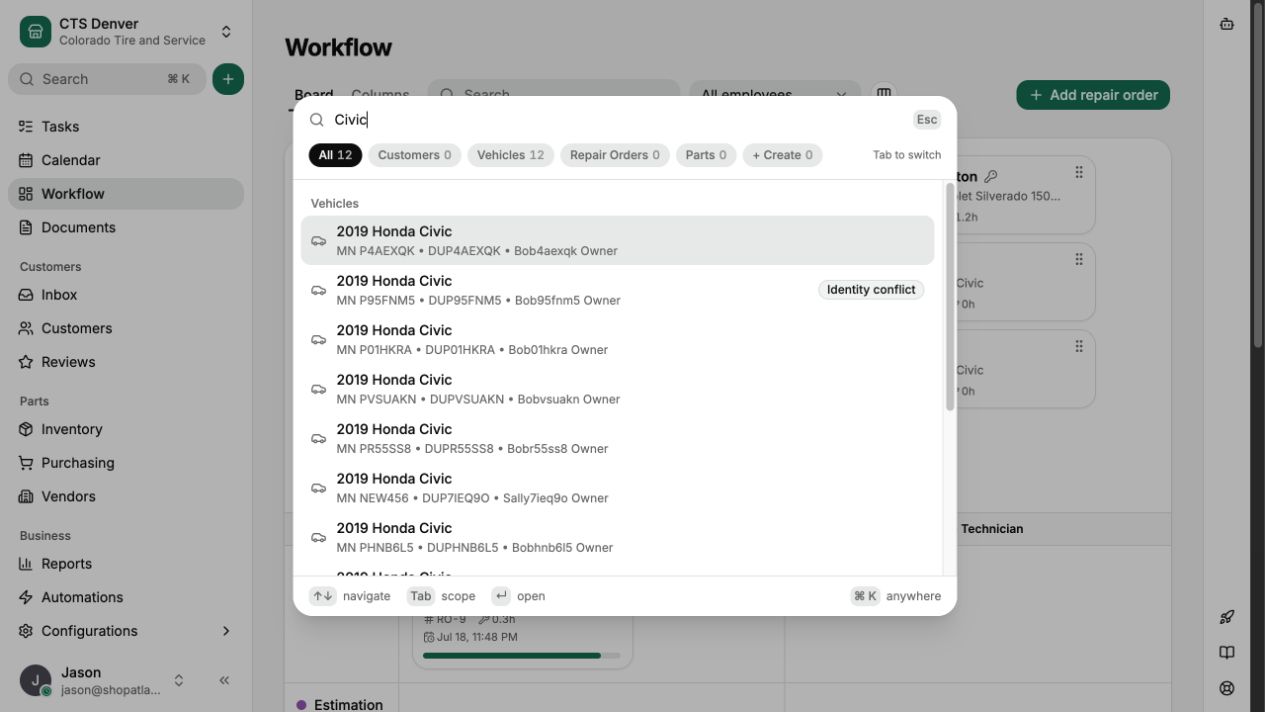
- Select Search near the top of the sidebar. You can also press Command-K on a Mac or Ctrl-K on Windows.
- Enter at least two characters.
- Select All, Customers, Vehicles, Estimates, or Repair Orders to narrow the results. Press Tab to move through the scopes without using the mouse.
- Select a result, or use the arrow keys and press Enter.
Customer search checks names, business names, Customer Labels, additional contact names, phone numbers, and license plates on owned Vehicles. Phone fragments work with or without formatting. Vehicle search checks the year, make, model, trim, color, VIN, and license plate. Selecting a Vehicle opens the Customer record that contains that Vehicle.
Estimate and Repair Order search checks the document number and the identity of its Customer or Vehicle. These document results belong to the active Shop and only appear when you have read access to that document type.
You need read permission for both Customers and Vehicles to use global Search. If those permissions cover the Organization, results can include records that originated in its other Shops. Otherwise, results stay in the active Shop.
Opening Search without typing shows up to three recently opened Customers, Vehicles, or Repair Orders for the active Shop. These recent items are kept in that browser.
The Parts search scope does not return record matches yet; use Inventory or Orders for parts. The All scope also finds configuration pages and tabs. Search does not find Users, reports, service lines, notes, or message text.
Create a record from the command menu
The plus button beside Search, or New inside Search, opens the command menu's create view.
- Select the plus button.
- Select the record to create, or use its displayed single-letter shortcut. With the arrow keys, highlight a record and press Enter.
- Complete the form that opens.
The menu can start a Repair Order, Estimate, Counter Sale, Customer, Inventory Part, Appointment, internal event, or Shop closure. Creating the record still requires its matching User Permission. Search results never create records; after confirming that a Customer does not exist, switch to New and select Customer.
Keep the main terms straight
An Organization is a business group. A Shop is one physical operating location inside that Organization. The active Shop controls where new Shop-scoped work is created.
Workflow is the operational board for Repair Orders. A Workflow Stage tells staff where the Repair Order sits in shop work; it is separate from the Repair Order's financial status.
Your Shop Role is a descriptive staff label, such as technician or service advisor. User Permissions control which actions and records you can use.
Use your user menu
Select your name at the bottom left to clock in or out, change Appearance, open User Settings, or Log Out. The shop switcher changes where you are working; the user menu changes settings for you.