Labor rates, part markup, fees, discounts, and taxes
Your shop's pricing defaults all live under Configurations > Financial: labor rates, part markup, fees and discounts, taxes, and payment methods. New-shop onboarding walks these pages once to enter your real numbers; this page is the reference for each section, and for the question onboarding doesn't answer: what happens to estimates and repair orders you've already written when you change or delete one of these later.
Editing any of these sections needs the Shop Settings update permission; the Tax section needs the separate Tax Configs permissions. See Assign Shop Roles, shop access, and User Permissions.
The copy rule
Four of the five sections follow one rule: their values are copied onto the document at the moment a line is created, and document pricing never reads the setting again. A labor line stores its own base and billed hourly rates. A part line stores its own selling price. A fee or discount on an estimate stores its own name and formula. A Fee also keeps its Template ID for reporting provenance, but that reference never reprices it. Edit or delete the setting later and every line already written keeps its numbers; only lines created after the change pick up the new values.
Tax is the one exception. An open estimate or repair order references its tax config live and recalculates tax whenever that config's rates change. The Tax section below covers what that means in practice.
Part markup
Part markup suggests a selling price whenever a part with a known cost is added to an estimate or repair order. Use the General and Tires tabs to maintain an independent table for each Part Kind. Each table has cost tiers: every row is a part-cost range with a Cost multiplier and the Gross profit percent that multiplier produces. Edit either column and the other updates to match. Multipliers can't go below 1.00×, tier ceilings must increase down the table, and the last tier is always open-ended ("$500.00 and up").
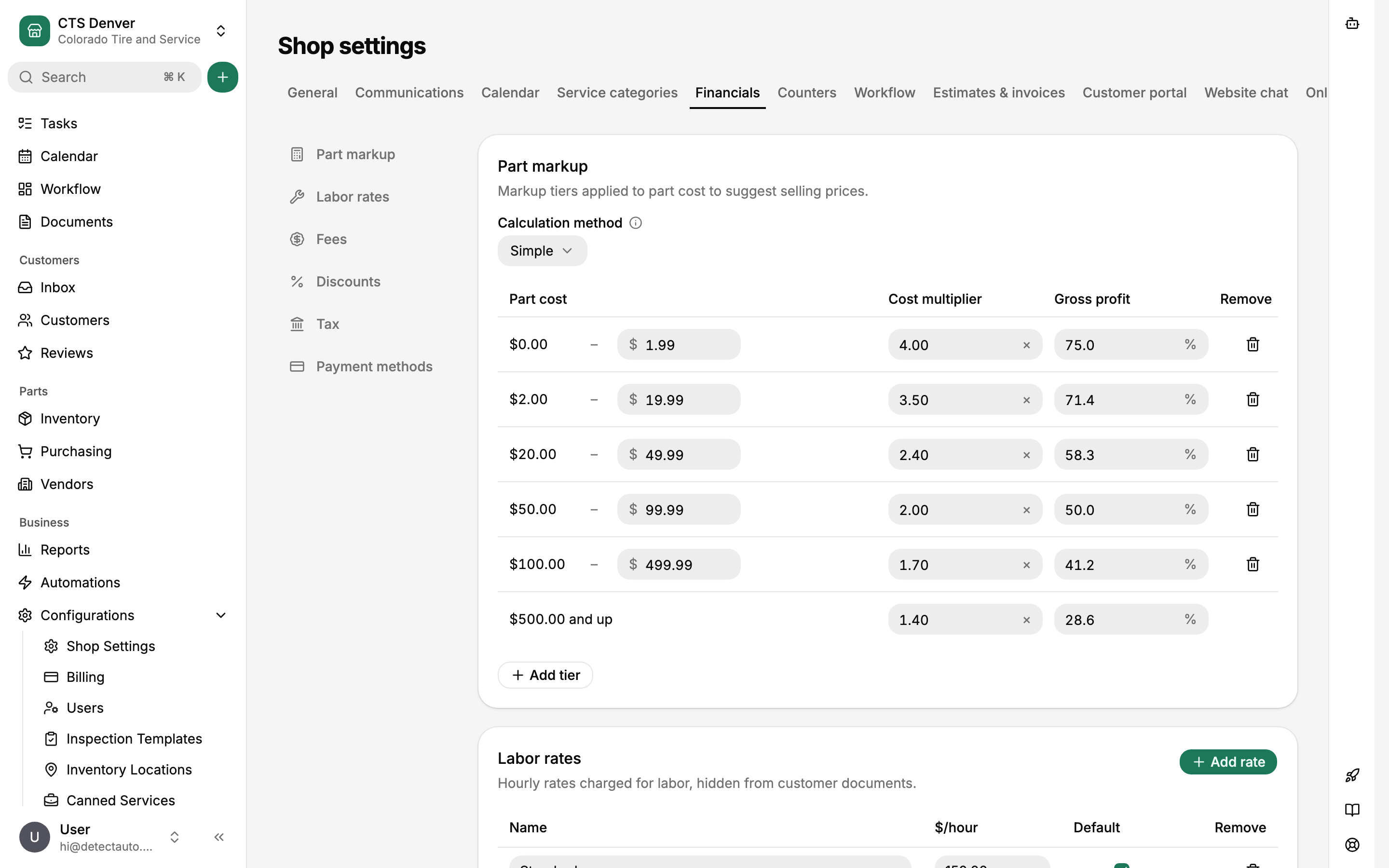
Every new organization starts both tabs with the same curve: cheap parts marked up hard, expensive parts marked up gently. A Shop may inherit or override General and Tires independently.
In the Estimate editor, a costed Manual or PartsTech part applies Part Markup automatically. The Price label says Part markup applied while the automatic result is active. Editing Price creates a line-specific override; choose Apply part markup beside Price to return the draft to current pricing. Inventory parts say Fixed retail applied and Use fixed retail instead when that Shop's Inventory Pricing policy uses a fixed amount. These actions remain draft changes until you choose Done.
| Part cost | Cost multiplier |
|---|---|
| $0.00 – $0.99 | 4.00× |
| $1.00 – $9.99 | 3.00× |
| $10.00 – $49.99 | 2.40× |
| $50.00 – $99.99 | 2.00× |
| $100.00 – $499.99 | 1.70× |
| $500.00 and up | 1.40× |
The Calculation method select above the table controls how the tiers combine:
- Simple finds the one tier containing the part's cost and applies that multiplier to the whole cost. Prices can dip at tier boundaries: with the table above, a $49 part suggests $117.60 while a $51 part suggests $102.00. That's how simple matrices work, not a bug.
- Progressive runs the cost through the tiers like tax brackets: each tier's multiplier applies only to the slice of cost inside that tier, and the slices are summed. Suggested prices never drop as cost rises.
On a document, the suggestion lands when the part line is created. Typing a selling price on the line marks that price as manual, and manual prices are never overwritten. A non-manual price does recalculate when the line's cost or Part Kind changes, but only until the customer authorizes the service; after authorization, price changes go through the normal re-authorization path. Each part line also has a reset action that reapplies the current suggestion on demand.
Saving the markup table never reprices existing part lines. Change your tiers on Tuesday and Monday's estimates read exactly as they did.
Two related settings live elsewhere: an Inventory Part can carry a Fixed retail price that wins over the markup suggestion (set on the part under Inventory), and Sublets have no markup at all; staff price them directly.
Labor rates
Labor rates are named hourly rates: Standard, Diagnostic, Fleet, whatever you charge. The table has a name, dollars per hour, a Default checkbox, and a drag handle for reordering; rows save as you edit them. Every new organization starts with one rate, Standard at $150.00/hour, marked default.
The default rate is what a new Labor Line uses as its base. Click the rate field on a Canned Service, Estimate, or Repair Order to choose another named Labor Rate, or type any billed rate directly for a manual override. Named rates are starting points, not restrictions. Keep exactly one rate checked as default, and keep at least one rate in the table; a new labor line has to start somewhere.
Customers don't see hourly rates by default. Customer documents show each service's price, and whether labor hours and rates itemize under it is a document setting covered in Payment methods and customer-document settings.
Changing a Labor Rate later follows the copy rule exactly: each Labor Line keeps its base rate and whether that rate excludes Labor Markup. Raise Standard from $150 to $165 and every existing line keeps its saved base; only lines created or explicitly switched to Standard afterward use $165. When automatic lines are created or repriced, they derive their billed rate from that base, their hours, and the then-current Labor Markup; typing a billed rate creates a manual override.
Deleting a labor rate that's in use on 40 estimates sounds like the kind of thing you want to be sure about. Here it's safe: the lines own their numbers, so deleting the rate only removes it from the settings table and from the starting-rate choice going forward. The delete is immediate, with no confirmation and no undo, so the rate's name and value are simply gone from settings.
Fees
Fees are reusable charge templates such as shop supplies, hazmat, or tire disposal. A new shop has none; add the ones you actually charge. Each template has:
- A scope: Estimate / repair order (applies to the document as a whole) or Service (applies to one service).
- A type. Fixed is a flat dollar amount. Percent is a rate applied to a basis you pick with checkboxes (labor, parts, sublets, tires), with an optional dollar cap. Per tire is a dollar amount multiplied by the tire count, also with an optional cap.
- A Taxable checkbox. Taxable fees enter the fees tax base; the fees tax rate comes from the tax config.
- An Available checkbox. Unavailable templates stay in configuration but disappear from document pickers.
- An Automatically apply checkbox for Estimate / repair order templates. An automatic template creates an ordinary order Fee on each new Estimate and directly created Repair Order. Converting an Estimate carries its Fees forward instead of applying automatic Fees a second time.
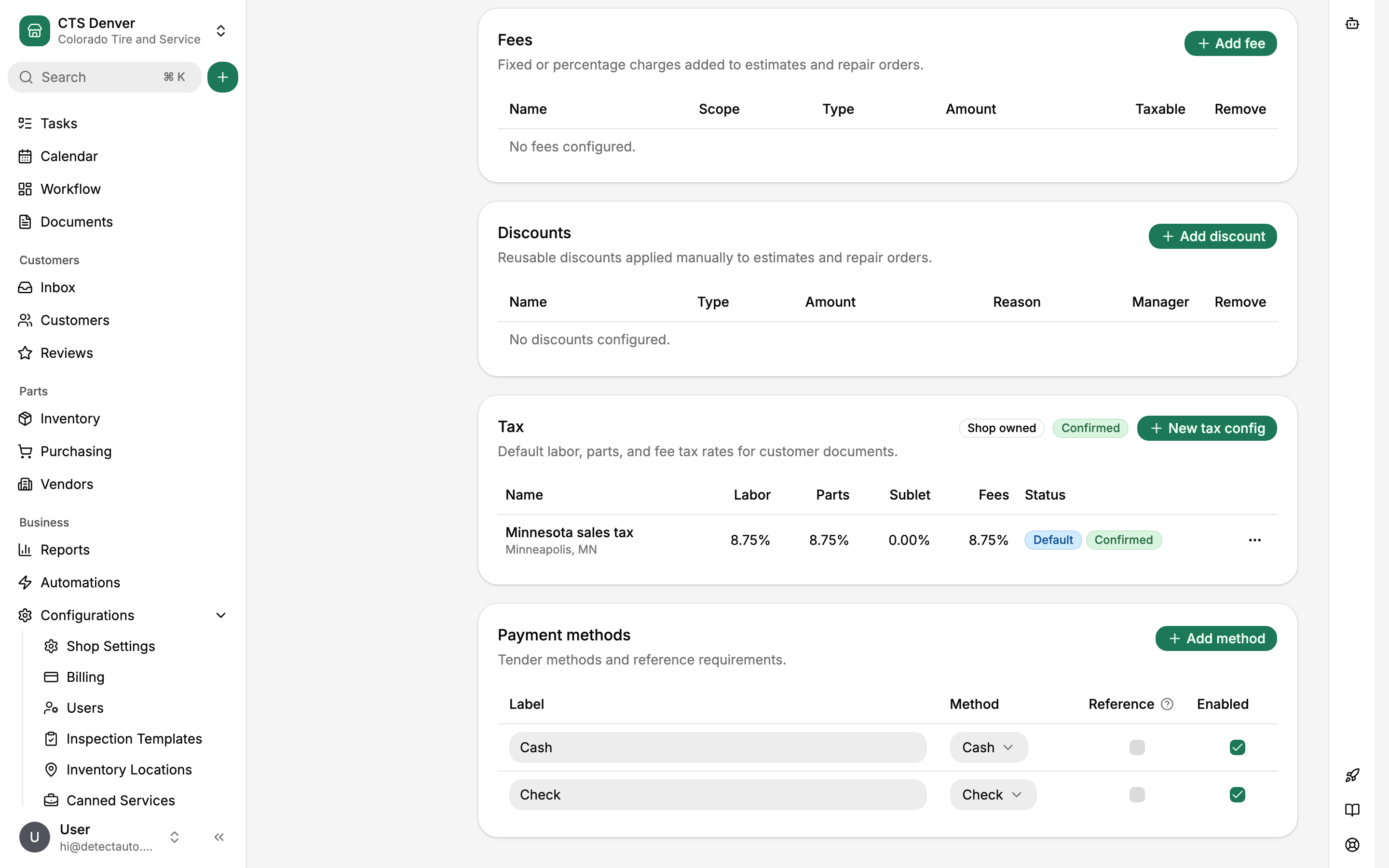
A percent template needs at least one basis checked, so "10% of nothing" can't be saved.
On a document, a fee is its own record with its own name, formula, and taxable flag. Add fee on a Service opens the available Service templates; Add fee in the Fees and discounts section below the Services opens the available Estimate / repair order templates. Choosing a template creates the Fee immediately. Users with Shop Settings update permission may instead add a Custom Fee with a name, fixed amount, and taxability.
A percent or per-tire Fee keeps recomputing its dollar amount as the quoted Services change, but the formula itself is the copy taken when the Fee was created. Overriding that displayed amount makes the Fee fixed on that document without changing its provenance. Edit or delete the template later and every Fee already on a document is untouched.
Discounts
Discounts are reusable reduction templates, always applied by hand; no discount is added automatically. Each template chooses Service or Estimate / repair order scope and a type: Fixed, or Percent of selected labor, parts, Sublets, and fees with an optional cap. Percent Parts discounts may exclude any Part Types, including tires and batteries. An order template can also exclude every Service that already has a Service discount.
Add discount opens only the active templates for that location and scope. Choosing one copies its name, formula, exclusions, stacking policy, and reason onto the document. You may override the calculated amount, which makes that copy fixed while retaining where it came from, or remove it.
Unreviewed Services calculate discounts exactly like reviewed Services. Hidden and declined Services keep their own calculated figures but do not enter staff Estimate totals; Repair Orders total visible Authorized Services, and Portal quotes total exactly the Services the customer selected. Customer documents list each nonzero named Service and order discount separately.
Whether tax is calculated before or after discounts is not a discount setting; it's the Tax applies after discounts checkbox on the tax config.
Template changes follow the copy rule: editing or deleting a discount template never changes a discount already sitting on a document.
Tax configs
A tax config holds the shop's tax rates for customer documents, split into four category rates: labor, parts, sublets, and fees. Each line on a document has its own taxable flag; a taxable line enters its category's base and is taxed at that category's rate, so labor is never taxed through the parts rate or the other way around. A config also has a name, an optional jurisdiction label, and the Tax applies after discounts checkbox.
Every new shop starts with one config named "Unconfirmed tax setup", all rates zero, marked default. A config is either unconfirmed or confirmed, and the section badge shows which state your default is in. You can build draft estimates and repair orders against an unconfirmed config, but sending an estimate and finalizing an invoice are both blocked until the document's config is confirmed. Enter your rates, then choose Confirm tax from the config's row menu. If you entered a postal code during setup, advisory suggested rates appear under the table, and the section warns when the default config's rates differ from them.
A shop can keep several configs, one per jurisdiction or special rate. New estimates and repair orders get the shop's default config; staff can switch a document to a different config from the taxes popover on the estimate tab, which is also where the per-document tax exemption override lives (inherit from the customer, exempt, or taxable). Tax-exempt customers are set up on the customer record with a reason and certificate reference.
Editing a config recalculates open documents
This is the exception to the copy rule. Open estimates and open repair orders reference their tax config live, so changing any of its four rates or the after-discounts checkbox immediately recalculates tax on every open document using it. The edit dialog tells you the blast radius before you save ("3 open estimates and 2 open repair orders will recalculate"), and each affected repair order gets an activity entry recording the change. Finalized invoices are safe: Invoice Finalization snapshots tax, so a rate change never rewrites an invoiced amount.
If the new rate should only apply from a date forward, don't edit the config your open documents use. Create a new config with the new rates, confirm it, and set it as default; existing open documents keep the old config and new documents get the new one.
Archiving, not deleting
Tax configs are archived, never deleted. An archived config disappears from pickers, but open documents that reference it keep computing tax with its rates until staff move them to another config. The default config can't be archived; set another config as default first, then archive from the row menu.
What a later change touches
| You change | Lines and documents already written | Finalized invoices |
|---|---|---|
| Edit or delete a labor rate | Nothing; labor lines keep their snapshotted rate | Unchanged |
| Edit the part markup table | Nothing; part lines keep their price | Unchanged |
| Edit or delete a fee or discount template | Nothing; applied fees and discounts keep their copied formula | Unchanged |
| Edit a tax config's rates | Every open estimate and open RO on that config recalculates tax | Unchanged; tax was snapshotted at finalization |
| Archive a tax config | Open documents keep using it; it leaves the pickers | Unchanged |
Organization defaults and shop overrides
In a multi-shop organization, labor rates, fees, and discounts can follow the organization's default list or be owned by the shop; the section badge names the source, and a shop's first edit copies the organization list into a shop-owned one that stops following later organization changes. General and Tire Part Markup each follow their Organization default until the Shop creates an override for that Part Kind; Tax Configs are always Shop-owned. The details are in Organization defaults and shop overrides.
Payment methods sit at the bottom of the same tab and follow the same inheritance model, but they're a tender list, not pricing; they're covered in Payment methods and customer-document settings.